Step 01
Start from the Workspace tab.
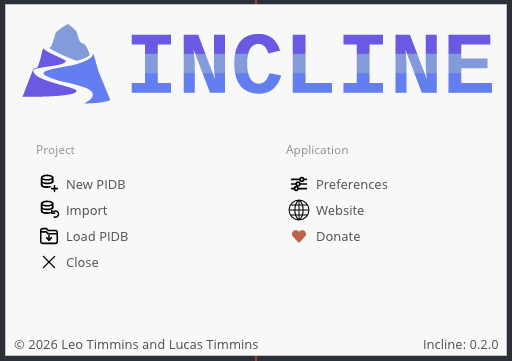
In a fresh or empty browser session, Incline opens on the Workspace tab with a welcome panel over the viewport. From here, choose New PIDB to begin an editable design database, Import to bring in external design or surface data, or Load PIDB to open an existing project. In Incline Native, sessions will persist meaning you can jump right back into designing at any time. The same actions remain available from the File menu after the welcome panel is closed.
Open Incline and have a PIDB or sample design ready to load. You can still follow the interface tour without data, but the navigation exercises are clearer with visible geometry.
Step 02
Lets inspect the interface.
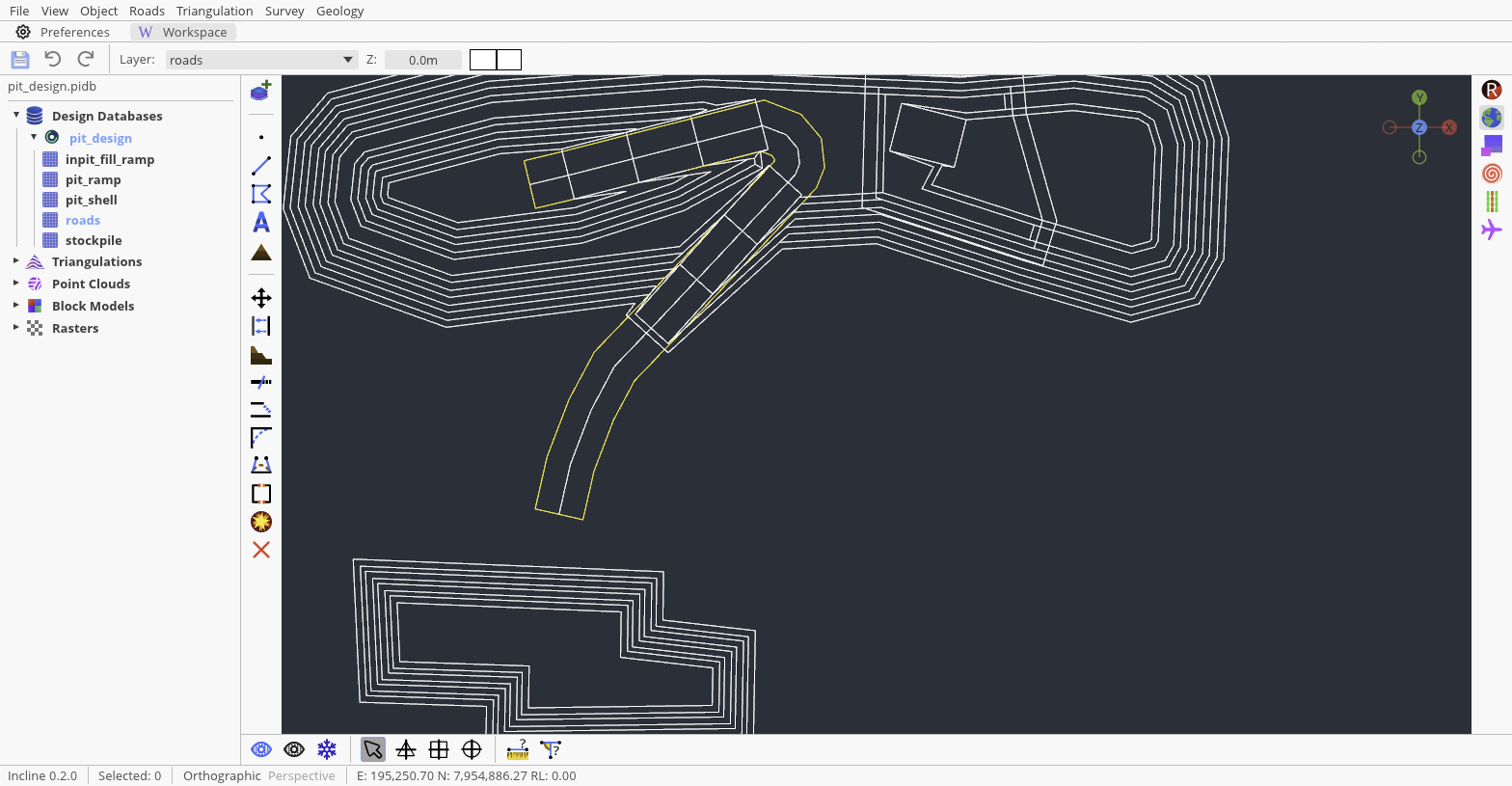
The top menu groups file, view, object, road, triangulation, survey, and geology commands. Immediately below it, the top toolbar holds Save All, undo and redo, the active Layer, the working Z elevation, and drawing appearance controls. Always glance at the Layer and Z fields before creating geometry; they determine where new objects are stored and the elevation used by the regular cursor.
The Explorer on the left organises Design Databases, Triangulations, Point Clouds, Block Models, and Rasters. The left toolbar beside it contains creation and editing tools. On the opposite edge, the right toolbar resets, frames, exaggerates, slices, or flies through the scene. Along the bottom toolbar, the first controls reveal, hide, or freeze selections; the next four choose cursor behaviour; and the rulers start measurement tools. The status bar reports the selection count, projection, and live E, N, and RL under the cursor.
Step 03
Load only what you need, then frame it.
Expand a PIDB in Design Databases. Loaded layers appear in stronger text; unloaded layers are grey. Double-click a layer to toggle its loaded state, and use the top Layer selector to make a loaded layer the destination for new work. Loading is a viewport decision: unloading a layer removes it from the working scene without deleting it from the PIDB.
Once the required layers are visible, select Zoom to extents—the globe on the right toolbar—to fit all visible content while preserving the current viewing angle. If an orbit has become confusing, use Reset view above it. Reset view returns to a top-down plan and fits the scene, giving you a reliable starting point.
Step 05
Change whats infos visible.
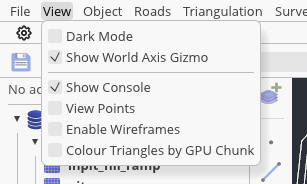
Open View for global display switches. Dark Mode changes the interface theme, while Show World Axis Gizmo toggles the viewport orientation gizmo. Show Console toggles the console where important system info is held, View Points displays design vertices, and Enable Wireframes exposes triangle edges on loaded surfaces. These are view settings: toggling them does not alter the underlying PIDB or triangulation.
When a dense surface hides design strings, use the right toolbar’s X-Ray Vision, or hide the selected obstruction from the bottom toolbar and use Reveal all elements when finished. Another option is to right click the obstructing topology and to change the color alpha to < 1.0.